WordPress AI Features: What Is Actually Ready to Use Today
- WordPress
- AI
- Productivity
Senior Full Stack Engineer · AI Focused
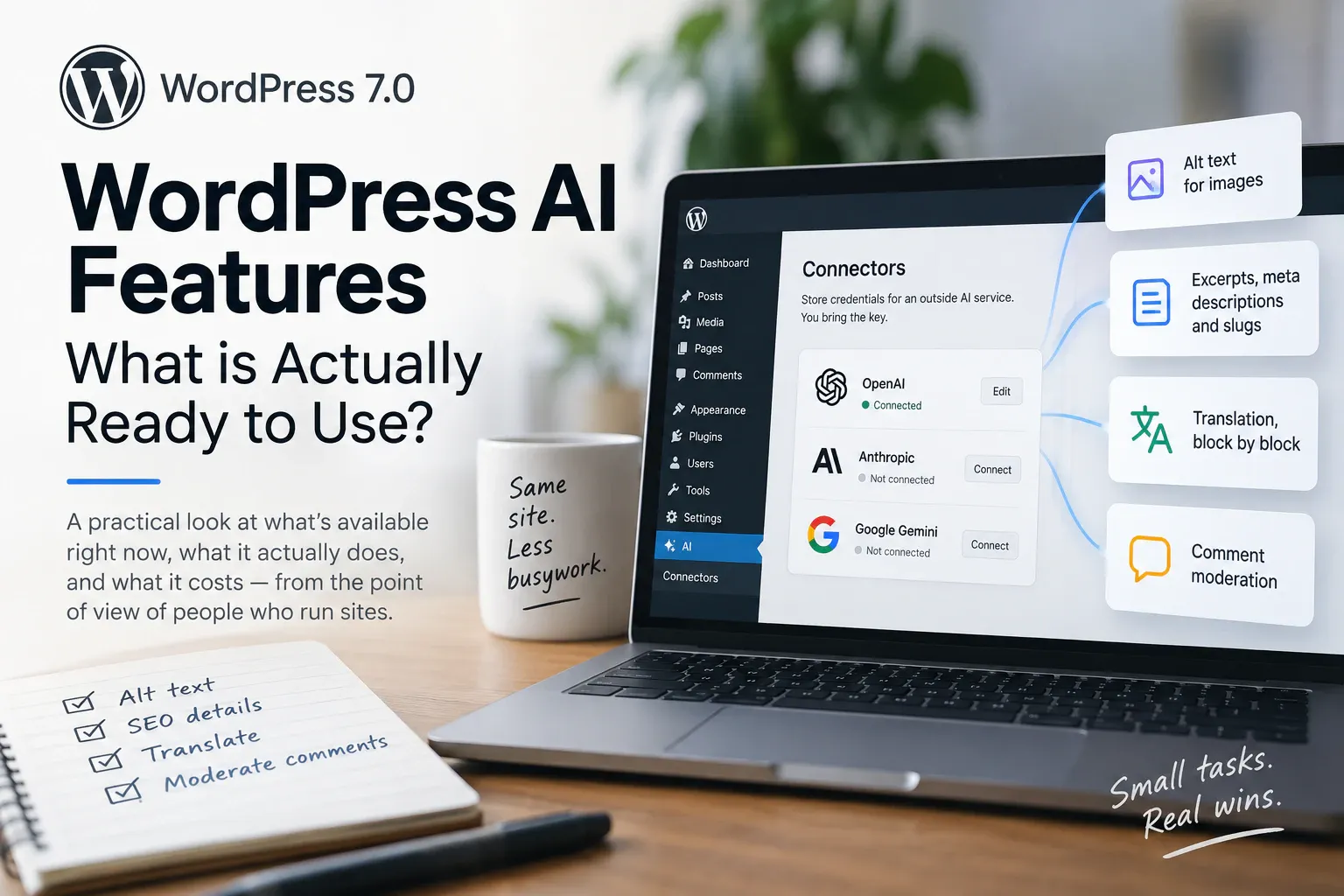
WordPress has AI in core now. Almost none of the writing about it is aimed at the people who actually run the sites.
The announcements talk about clients, registries and provider-agnostic APIs. Those are real, and they matter, but they are aimed at plugin developers. If you run a site, you want to know three things: what can I switch on, what will it do, and what does it cost me.
I have built AI features inside a WordPress product before, and the hard part was never the model. It was everything around it. The same is true here. The interesting question is not what WordPress can theoretically do with AI. It is which parts are finished enough to put on a site you care about.
Connectors is the part that changed
WordPress 7.0 added a screen at Settings, then Connectors. It ships with three featured providers: Anthropic, Google and OpenAI.
What it does is small and more important than it looks. It gives WordPress one official place to store the credentials for an outside AI service, so every plugin stops building its own API key settings page.
WordPress does not sell you AI. It gives you a socket.
You bring the key. That is the detail most coverage skips, and it is the one with a bill attached. You create an account with Anthropic, Google or OpenAI, generate an API key, paste it into the Connectors screen, and from then on every AI feature on your site charges that account.
WordPress 7.1, released in August, added username and application password authentication for connectors that need it rather than an API key.
The features live in a plugin, not in core
The Connectors screen shows a notice offering to install something called the AI plugin. That plugin is where everything you can actually see and click lives.
It is canonical, which means it is built by the WordPress AI team and published on WordPress.org rather than by a third party. It is also labelled experimental, and that label is accurate.
Installing it adds a second screen at Settings, then AI. There is a master Enable AI toggle in the corner and a list of individual features underneath, each with its own switch. Nothing turns on by itself.
Two constraints are worth knowing before you start. It requires WordPress 7.0 or newer, and it only works in the block editor. If your site still runs the classic editor, you will install it and see nothing.
What the AI plugin actually does once it is on
The feature list is longer than I expected, and the useful part of it is narrower than the list suggests:
- Alt text. Generates a description for an image, in the editor or from the media library. This is the one I would switch on first.
- Excerpts, meta descriptions and slugs. Three small fields that most people skip, generated from the post you already wrote.
- Translation. Translates paragraph and heading blocks into a language you pick, block by block rather than all at once.
- Rewriting a selected block. Shorten it, expand it, or rephrase it, without leaving the editor.
- Comment moderation. Flags comments for toxicity before they reach you.
- Tags and categories. Suggests which of your existing terms fit a post.
Look at what those have in common. They are small, repetitive, and already on your list. Nobody enjoys writing alt text for forty images.
That is the honest shape of it. The wins are the boring jobs you were going to skip, not the headline of a model writing your posts for you. Generating a whole article is technically available and is not, in my experience, what makes a site better.
Where third-party plugins still do more
Core is deliberately narrow, and that leaves a lot of room. There are four categories where a plugin is still the answer:
- writing assistants that draft and restructure entire posts
- SEO plugins that generate titles and descriptions inside their own workflow
- page builder AI that produces layouts, images and CSS
- chatbots that answer visitor questions from your own content
Two are worth naming. Jetpack AI Assistant comes from Automattic and is the closest thing to a first-party option, sold as a subscription with no API key to manage. AI Engine has been around far longer than any of this, works on a bring-your-own-key model, and its free version covers more than most people need.
Beyond those, be careful. The WordPress AI plugin space got very crowded very quickly. Before installing anything, check when it was last updated, whether it stores your API key in plain text, and whether your content is being sent somewhere you have not heard of.
There is also a newer piece called MCP, which lets an assistant like Claude or ChatGPT work on your site directly rather than inside the editor. That is a different shape of thing and deserves its own post.
Turning it on without regretting it
A few things I would want to know before turning the AI plugin loose on a live site:
- an API key typed into the Connectors screen is stored in your database, masked on screen but not encrypted, unless you enable the plugin’s key encryption option
- you can supply the key as an environment variable or a PHP constant instead, and WordPress will prefer those over the database
- every generation costs money on the provider’s side, and nothing inside WordPress caps your spending
- the plugin says experimental and means it, with features changing between releases
- turning on one feature at a time is the only way to tell what changed
None of that is a reason to avoid it. It is a reason to try it on a staging copy first, the same as any plugin that touches your content.
Final thought
I like this release more than I expected to, and mostly for what it does not do. WordPress did not build an AI product. It built a place to plug one in, then shipped a small, cautious plugin on top and let everyone else compete above that line.
For a site owner, the practical version is smaller still. Install the plugin, connect one provider, turn on alt text, and see whether you notice.
If you do not, turn it off. That is a perfectly good result.